


You will need to give permission for the Blecon Mobile App to access Bluetooth and Location Services. Follow the instructions in the app to Allow Location access to Always.
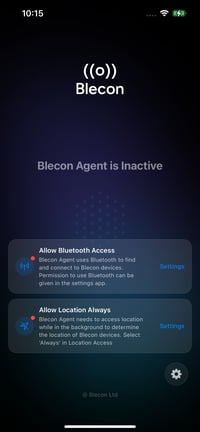
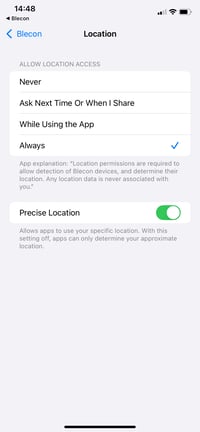
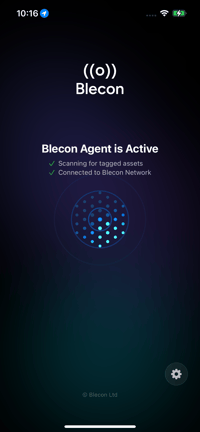
When you see the Blecon is enabled message, you are finished.
The app will automatically spot labels in the background without you having to do anything.
You will need to give permission for the Blecon Mobile App to access Bluetooth and Location Services. Follow the instructions in the app to Allow Location access to Always.
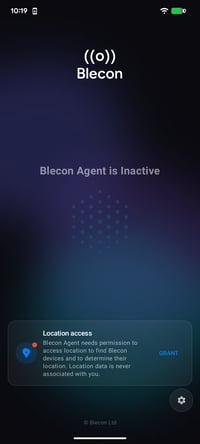
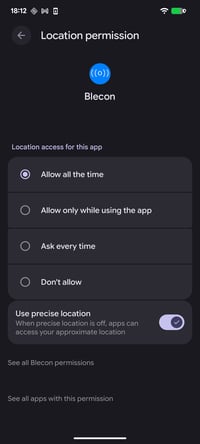
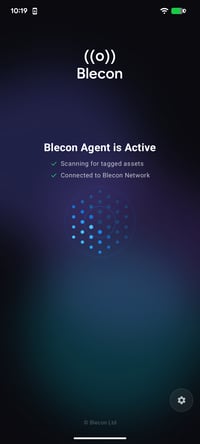
When you see the Blecon enabled message in the main screen you are finished.
The app will automatically spot labels in the background without you having to do anything.
03 Sign into Blecon Track
We have pre-created an account for you. Check your email inbox for an email from us with the subject Invitation to join Blecon Tracker to find your joining link.
Click the Accept Invitation button and complete your registration to Blecon Tracker. Create a new login or use your existing Google or GitHub account to login.
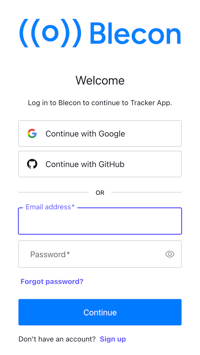
Can't find the email? Contact Blecon Support and we'll get you on your way.
04 Register an Asset
When you first start, no assets are tracked. You will now add a label/beacon that should be tracked.
Click the 📦 Scan Asset button at the top right of the Blecon Tracker page.
If you are on a PC, a QR code will pop-up. Scan this QR code with your mobile phone's camera to launch the Blecon scanner.
If you are already on your mobile phone, then the Blecon scanner will launch automatically.
1. Scan the QR code printed on the label or beacon.
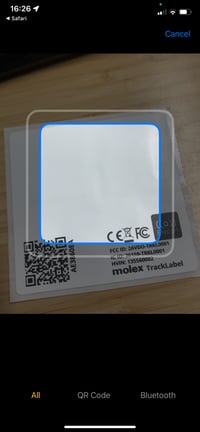
2. Once you have scanned a label, give the label a descriptive name.
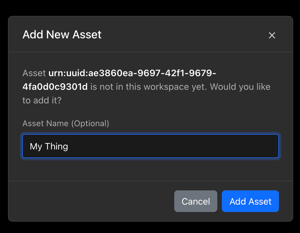
3. The label is now registered. However, you will not see any events from the label yet because the label has not yet been activated.
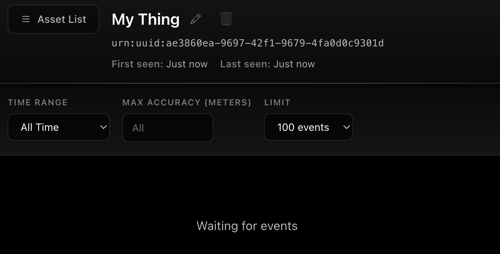
05 Activate and Track
To activate:
-
Labels, peel the label away from its backing
-
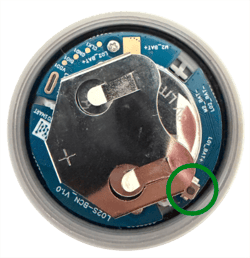
Beacons, unscrew the back cover and push the small black button by the battery
Whenever any Blecon Hotspot spots your asset, Blecon Track will update the label position and generate events.
Although data normally shows up in Blecon Track quickly, it can take up to 2 minutes for the Blecon Network to spot the device and update the web site.
If you have any questions, we're here. Click Ask a Question in the tracking portal.